


⚡ Claim Your FusionClubTV Free Trial
No credit card required • Instant activation
Today, we're going to show you how to add an M3U URL to Wiseplay, an open-source multimedia player that works on multiple platforms. For people who like to watch videos and listen to music, this is a great option because it can handle many video formats and playlists. It works with both local and remote video sources without any problems thanks to its easy-to-use interface.
It is possible to wirelessly send content from a handheld device to a TV via DNLA or Chromecast, but this depends on whether the video format works. Notable is the automatic discovery of compatible devices in the shared network, which can be seen by the bright appearance of their icons.
Click on the link below to get this app:
https://play.google.com/store/apps/details?id=com.wiseplay&hl=en_US
 Step 3: This is where you can choose which channels to watch for each group.

How to use a URL to add a list
Step 1: Click on the pink circle in the bottom right corner of your screen to start adding songs to your playlist using an M3U URL. After that, choose "Add List from URL" and paste your M3U URL into the field that's there. Step 2: Choose the playlist you added after importing your M3U URL.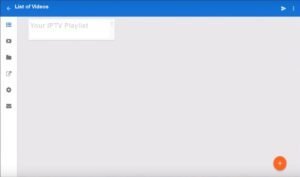
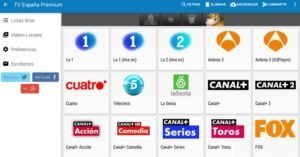
wiseplay's characteristics
- Direct from a file, via a hyperlink, or by QR code import video catalogs in w3u and m3u formats straight from a file.
- Cast: Using Chromecast devices or DLNA, broadcast content compatible with Wiseplay to your television set.
- Version of Android TV: Our version is tailored and optimized for TVs and Android TV devices, so it works well and integrates easily.
- VR Player lets you easily become immersed in 3D or VR video formats. You can either choose a video from your gallery or give a link, then connect your VR glasses. You can also enjoy our Cinema Mode for a variety of VR viewing experiences.
⚡ Claim Your FusionClubTV Free Trial
No credit card required • Instant activation