


No credit card required • Instant activation
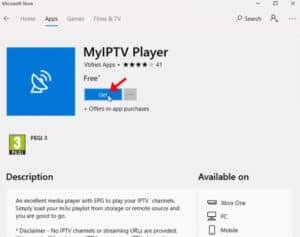
You can download this app via the link below:
https://www.microsoft.com/en-us/p/myiptv-player/9pjj2nmbf0tr
How to add IPTV channels to MyIPTV Player App
Step 1: Commence by downloading the application from either the Microsoft Store, Xbox Live Store, or Windows Phone Store. Upon completion of the download, initiate the application.
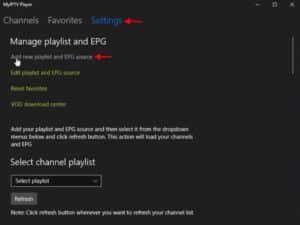
Step 2: Go to “Settings” and select “Add new playlist and EPG source” and proceed to the next step.
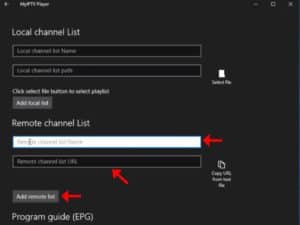
Step 3: Now Proceed to the “Remote Channel List section” In the initial field, provide a name for your playlist, and in the subsequent field, input your M3U playlist URL. Subsequently, click on “Add remote list” to advance to the subsequent section.
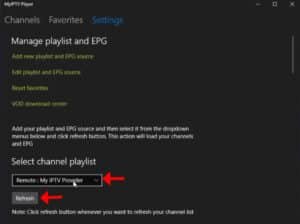
Step 4: Now Return to the settings section once more, then navigate to the “Select channel playlist” area. Choose the playlist recently added and proceed to click on “Refresh.”
Step 5: Now navigate to the “Channels” tab. Here, you can commence watching the channels you recently added to your MyIPTV Player App.

MyIPTV Player App features
- HTTP Live Streaming (HLS) and MPEG TS are both supported for seamless playback. •
- Channels are automatically organized into groups based on channel data.
- Built-in Electronic Program Guide (EPG) support with the option for channel recording.
- Convenient built-in feature for managing favorites.
- Capability to support multiple channel playlists simultaneously.
- Ability to download Video on Demand (VOD) streams for offline viewing.
- Accessible download center and history for VOD files.
- Various channel filtering options are available, including PIN protection for restricted access.
- Flexible media player option utilizing either the VLC library or the native Windows 10 media player.
- Convenient option to manually add channels within the app settings.
Feel free to share your thoughts and feedback on this article in the comments section below and help us improve the quality of our articles. Thank you in advance.
No credit card required • Instant activation