How to Reduce Buffering on a Smart TV
No credit card required • Instant activation
Understanding Why Your Smart TV Buffers
Buffering is that frustrating pause when your video stops playing while the player downloads more data. Think of it as a digital traffic jam. For a smooth stream, your smart TV needs a constant, fast flow of data from your streaming service. When that flow is interrupted or too slow, your TV has to pause and wait for more data to arrive. This is especially common with high-resolution content like 4K Ultra HD, which demands significantly more bandwidth than standard or high-definition video.
Several factors can cause this data bottleneck:
- Slow Internet Connection: Your internet plan might not be fast enough for the quality you're trying to stream.
- Weak WiFi Signal: The distance and obstacles between your router and your TV can degrade the wireless signal.
- Network Congestion: Too many devices using your home network at the same time can slow everything down.
- Outdated TV Software: Your TV's operating system or the streaming app itself may have bugs or performance issues that need an update.
- Streaming Service Issues: Sometimes, the problem isn't on your end. The streaming service itself could be experiencing high traffic or technical difficulties.
By systematically addressing each of these potential causes, you can pinpoint the source of your buffering problem and restore your seamless viewing experience.
Step 1: Test Your Internet Connection Speed
Before you start rearranging furniture or buying new equipment, the first step is to determine if your internet connection is fast enough for what you're trying to watch. You can easily test your speed using a web browser on a computer or phone connected to the same network as your TV. Some smart TVs even have built-in web browsers or speed test apps.
Here are the generally recommended minimum speeds for popular legal streaming services:
| Video Quality | Recommended Minimum Speed (Mbps) |
|---|---|
| Standard Definition (SD) | 3-5 Mbps |
| High Definition (HD – 720p/1080p) | 5-10 Mbps |
| 4K Ultra HD (UHD) | 25 Mbps or higher |
Run the speed test a few times to get an average. If your results are consistently below the recommendation for 4K streaming, your internet plan may be the primary culprit. However, if your speed test shows you have plenty of bandwidth, the problem likely lies with your home network or device.
Step 2: Optimize Your Home WiFi Network
Your WiFi network is the invisible bridge between the internet and your smart TV. A weak or unstable bridge will inevitably lead to buffering. Here’s how to strengthen it.
Move Your Router Closer
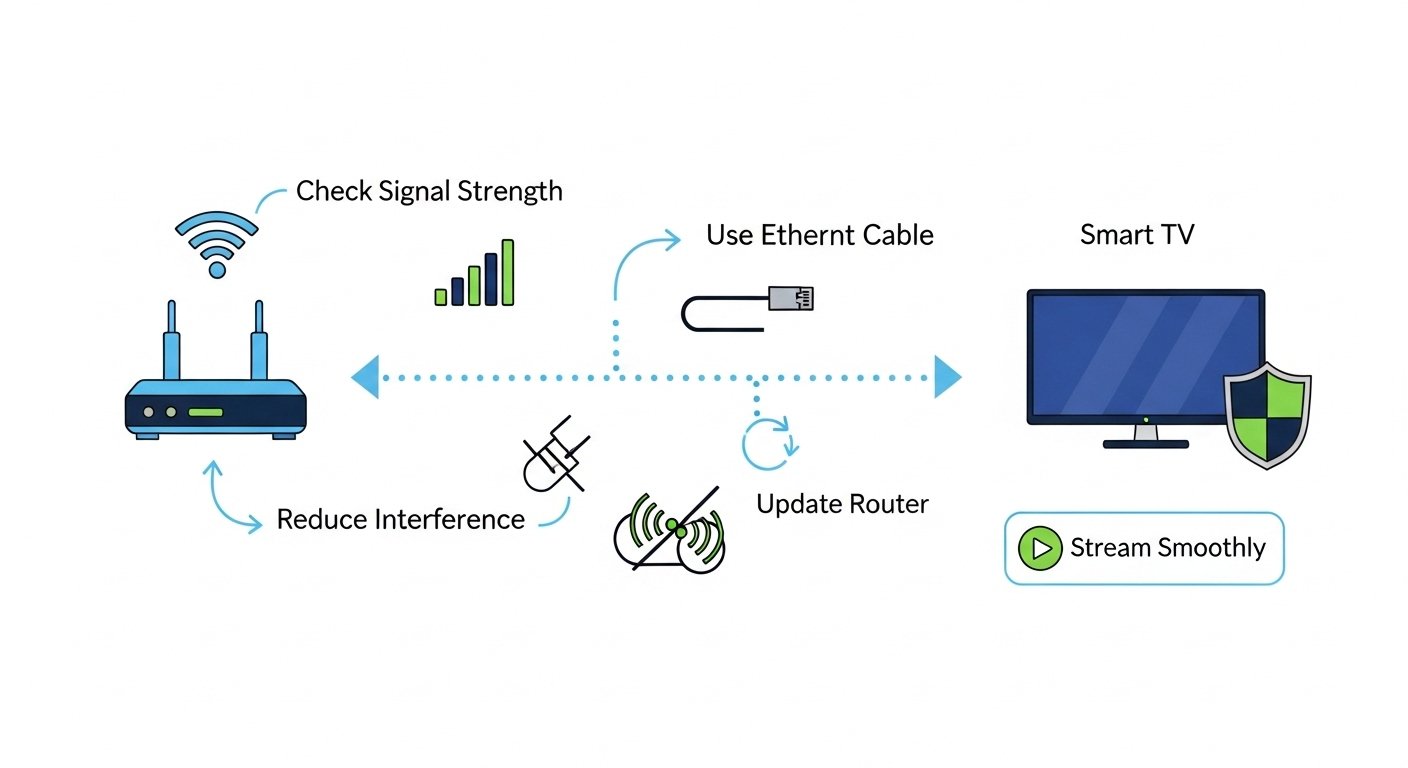
WiFi signals weaken over distance and can be blocked by physical objects like walls, floors, and large furniture. For the best performance, your router should be as close to your smart TV as possible, with a clear line of sight if you can manage it. Avoid placing your router inside a cabinet, behind a sofa, or near other electronic devices that can cause interference, such as microwave ovens or cordless phones.
Switch to a Wired Ethernet Connection
While WiFi is convenient, a wired Ethernet connection is the gold standard for speed and stability. It eliminates signal interference and provides a direct, consistent link to your router. If your smart TV has an Ethernet port, try connecting it directly to your router with an Ethernet cable. This single change is often the most effective solution for eliminating 4K streaming buffering.
No credit card required • Instant activation
Change Your WiFi Channel or Band
Most modern routers are dual-band, meaning they broadcast on both 2.4GHz and 5GHz frequencies. The 2.4GHz band has a longer range but is more prone to interference from other devices and neighboring WiFi networks. The 5GHz band offers faster speeds and less congestion over a shorter range. If your TV is relatively close to your router, connecting to the 5GHz network is almost always the better choice for streaming.
Reduce Network Congestion
Your home's total internet bandwidth is shared among all connected devices. If someone is downloading large files, playing online games, or on a video call while you're trying to stream a 4K movie, you may experience buffering. Try to limit other high-bandwidth activities on your network during your streaming sessions, or consider upgrading to a router with Quality of Service (QoS) features, which allow you to prioritize traffic to specific devices like your smart TV.
Step 3: Adjust Your Smart TV and App Settings
Sometimes the issue is with the TV or the streaming application itself. These simple software tweaks can make a big difference.
Clear App Cache and Data
Streaming apps store temporary data in a cache to help them run faster. Over time, this cache can become bloated or corrupted, leading to performance problems like buffering. Go into your smart TV's settings, find the application manager, select the problematic streaming app, and choose the option to clear its cache. In some cases, you may need to clear the data as well, but be aware this will log you out of the app.
Update Your TV's Firmware and Streaming Apps
Manufacturers and app developers regularly release updates that include performance improvements, bug fixes, and security patches. An outdated TV firmware or streaming app could be the source of your buffering woes. Check your TV's settings for any available system updates and visit your TV's app store to ensure all your streaming applications are up to date.
Lower the Streaming Quality
If you've tried everything else and are still experiencing buffering, you can use this as a temporary fix or a diagnostic tool. Go into the settings of your streaming app (like Netflix or YouTube) and manually lower the streaming quality from ‘Auto' or ‘4K' down to ‘1080p' or ‘HD'. If buffering stops, it's a strong indicator that your connection speed or WiFi stability is the root cause.
Smart TV Buffering Troubleshooting Checklist
Feeling overwhelmed? Use this quick checklist to work through the most common buffering fixes in a logical order.
- ✅ Restart Everything: The classic IT solution. Power off your smart TV, router, and modem. Wait 60 seconds, then turn them back on in this order: modem, router, then TV.
- ✅ Run a Speed Test: Confirm you have at least 25 Mbps for 4K streaming.
- ✅ Go Wired: Connect your TV to the router with an Ethernet cable if possible.
- ✅ Improve WiFi: If wired isn't an option, move the router closer to the TV and switch to the 5GHz band.
- ✅ Limit Other Devices: Pause large downloads and other high-bandwidth activities on your network.
- ✅ Update Software: Check for and install any available updates for your smart TV and streaming apps.
- ✅ Clear App Cache: Navigate to your TV's app settings and clear the cache for the streaming app you're using.
- ✅ Check Service Status: Visit a site like Downdetector to see if your streaming service is experiencing a widespread outage.
Frequently Asked Questions (FAQ)
Why does my smart TV buffer but my phone doesn't?
This is common. Your phone may be physically closer to the WiFi router, receiving a stronger signal. Also, phones often automatically stream at a lower resolution to fit their smaller screens, requiring less bandwidth than a large 4K TV.
Is a faster internet plan the only solution for buffering?
Not at all. While a slow plan can be the cause, issues within your home network—like poor WiFi signal, router placement, or network congestion—are often the real culprits. Optimizing your home setup is a crucial step before upgrading your plan.
How often should I restart my router and smart TV?
A weekly or bi-weekly restart of your router and TV is a good preventative maintenance habit. It clears out temporary memory (RAM), resolves minor software glitches, and can help maintain a stable connection.
Can a VPN cause buffering?
Yes, it can. Using a VPN (Virtual Private Network) adds an extra step for your internet traffic. The encryption and routing process can reduce your overall connection speed, potentially leading to buffering, especially when streaming high-resolution content. If you use a VPN for privacy, try disabling it temporarily to see if it resolves the buffering issue.
Does the age of my smart TV affect streaming performance?
Absolutely. Older smart TVs have slower processors, less memory (RAM), and may not support the latest WiFi standards or app versions. As streaming technology and video codecs evolve, older hardware can struggle to keep up, resulting in buffering and other performance issues that new equipment wouldn't face.
By following these troubleshooting steps, you can systematically identify and resolve the cause of smart TV buffering. A smooth, high-quality streaming experience is achievable with a little bit of tuning and optimization of your home entertainment setup. Enjoy the show!
FusionClubTV publishes educational content about legal streaming, IPTV technology, and device setup. We do not promote piracy, illegal IPTV subscriptions, cracked apps, unauthorized streams, or bypassing paid access.